Dual subtitles on Prime Video
Get dual subtitles on Prime Video in Chrome: the Prime Video subtitle on top, a translation in your language below, and words to click and save.
Updated
How to turn on dual subtitles on Prime Video
Add Lingosive to Chrome
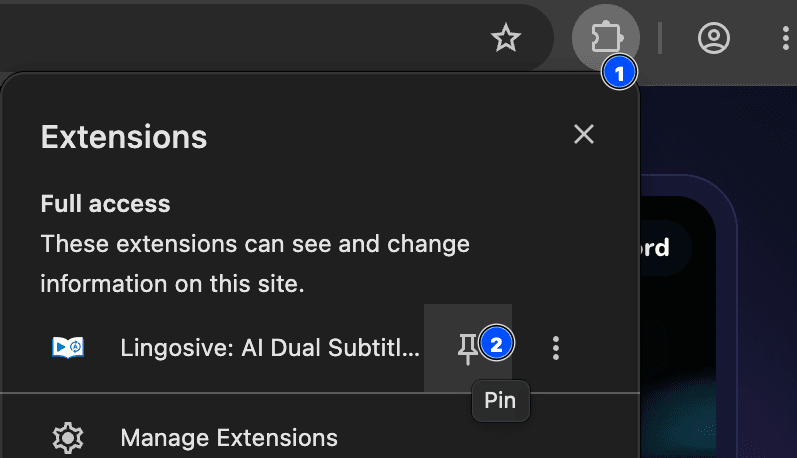
Install Lingosive from the Chrome Web Store in desktop Chrome. Pin it from Chrome's extensions menu if you want the side panel one click away.
Open the title on primevideo.com or Amazon
Lingosive runs on www.primevideo.com and, since version 2.1.0, on the Prime Video pages of amazon.com, amazon.co.uk, amazon.de and amazon.co.jp. On the Amazon sites, the Lingosive button appears once playback starts. Other Amazon stores send Prime Video to primevideo.com.
Turn on Prime Video subtitles
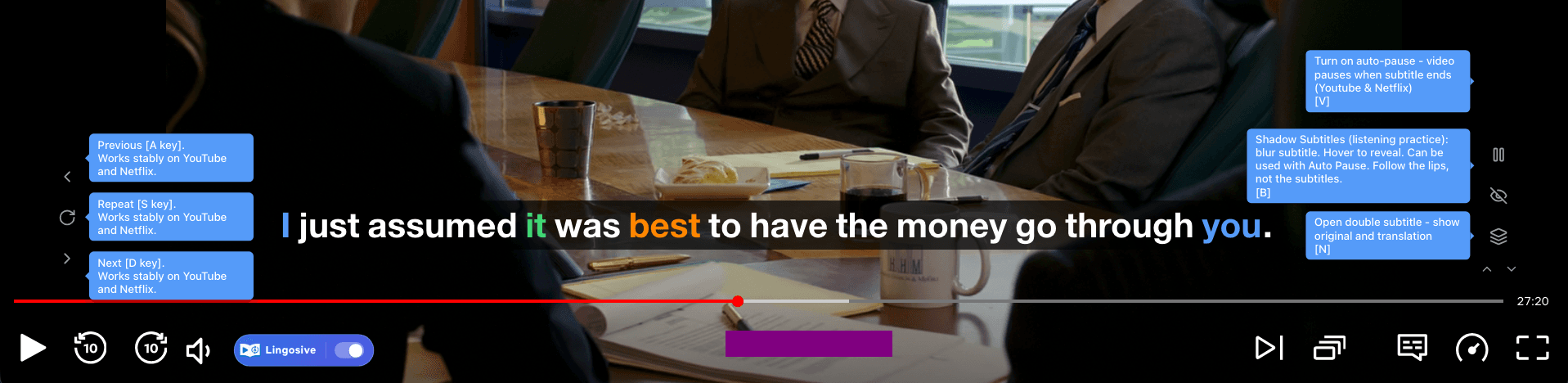
Use the player's subtitles button and choose the language you're learning. The Lingosive button sits just left of it; while the Prime Video subtitles are off, the Lingosive line stays hidden.
Switch on Double Subtitle
Click the layers icon to the right of the subtitle line, or press N. A translation in your native language appears under each line.
Can you have two subtitles on Prime Video?
Yes, on a computer. Prime Video lets you choose one subtitle language, but in Chrome, Edge or Brave the free Lingosive extension adds the second: the Prime Video subtitle stays on top and a machine translation into your language appears below it. It works on primevideo.com and amazon.com, not in the Prime Video apps for phones, tablets or TVs.
- What's free? Dual subtitles and word translations, with no account needed. A free account saves up to 100 words, and Premium removes that cap and the daily limit on Lingosive AI explanations.
- Which browsers and devices? Chrome, Edge, Brave or another Chromium browser on a computer; there's no Firefox or Safari version. On a phone or tablet, the Lingosive app has its own library of YouTube videos instead; it doesn't play Prime Video.
- How do I turn it on? Open the title, turn on its subtitles in the language you're learning and press N.
primevideo.com or Amazon: where it works
A lot of people reach Prime Video through the main Amazon store. Since version 2.1.0 (October 2026), Lingosive works there too: on the Prime Video pages of amazon.com, amazon.co.uk, amazon.de and amazon.co.jp, as well as on www.primevideo.com. Other Amazon stores send Prime Video to primevideo.com. On the Amazon sites, the Lingosive button shows up once playback starts; videos on product pages don't get it.
On either site, Lingosive reads the subtitle track you have switched on in the player and draws it as its own interactive line. It doesn't download the video or fetch other subtitle tracks, which is why the Prime Video subtitles need to be on: switch them off and the Lingosive line hides with them, switch them on again and it comes back.
How Prime Video differs from YouTube and Netflix
The basics are the same on every platform, but a few things work differently here:
- Timing. On Prime Video, Lingosive lines up its subtitle with the text Prime Video shows on screen. That keeps the two in step, but small hiccups can happen. If a line doesn't appear, a page refresh can help the subtitle file load.
- Pausing. There is no Auto Pause on Prime Video. Instead, the video pauses the moment you hover over a subtitle, which gives you time to read and click.
- Keys. Previous, repeat and next line are Q, W and E here, not the A, S and D used on YouTube and Netflix.
- X-Ray. The X-Ray overlay in Prime Video can cover the subtitles. Lingosive hides it by default so your two lines stay visible.
If you want Auto Pause and slower replays, those work when you watch with dual subtitles on Netflix or YouTube.
Learning a language with Prime Video
Movies are long, so give yourself a plan. Watch the first stretch with both lines, hover to pause whenever a sentence goes by too fast, and click the words you don't know. Press W to hear a line again. Sign in to save words: a free account holds up to 100 words and phrases, and Premium removes that cap. Saved words sync to the web learning center and the Lingosive iOS and Android apps, where flashcards with spaced repetition help you review them.
When the original line starts to make sense on its own, press N to hide the translation, or press B for Blur mode and reveal a line only when you need to. If a word keeps nagging at you, Word in Film plays real movie and TV scenes where it's said. Want to compare platforms first? See dual subtitles on every supported platform. Otherwise, download Lingosive and open your next Prime Video title.
What works on Prime Video
Clickable Prime Video subtitles
Lingosive replaces the subtitle Prime Video shows with its own line. Hover a word for its translation; click it for other meanings, example lines, a Listen button and a Learn button that saves it to your list.
X-Ray stays out of the way
"Prime Video X-Ray Auto-Hide" is on by default and hides the X-Ray overlay so it doesn't cover your subtitles. You'll find the switch in Settings → Subtitle & Display.
The video pauses when you hover
On Prime Video, playback stops as soon as your mouse is over a subtitle, so you can read both lines and click a word without missing the next one. Change this in Settings → Video pause settings.
Q, W and E to move between lines
Q goes back a line, W repeats it and E jumps to the next one. You can pick other keys in Settings → Controls.
Lingosive AI in the word card
Signed in, click "Get Explanation" for the word's meaning in that sentence, a grammar note and synonyms. The free plan has a daily limit; Premium removes it.
Sentence translation and a searchable transcript
Hover the translate icon beside a line to see the whole sentence translated, or open the video panel's Subtitles tab to search the transcript and jump to any line.
Limits on Prime Video
- On amazon.com, amazon.co.uk, amazon.de and amazon.co.jp, it works only in the Prime Video player, not on videos on product pages.
- The Prime Video subtitles have to be on; when you switch them off, the Lingosive line hides too.
- Auto Pause and the slower repeat are YouTube and Netflix features and aren't available on Prime Video.
- Small issues can sometimes happen on Prime Video, and previous, repeat and next work most reliably on YouTube and Netflix. If subtitles don't appear, refreshing the page can help.
- It runs in Chrome on a computer, not in the Prime Video apps for phones, tablets and TVs, which can't run extensions.
Does Language Reactor work on Prime Video?
Not as of October 2026. Language Reactor's FAQ names Amazon Prime among the platforms it doesn't support yet: "We do not support these platforms yet, but might in the future." Its getting-started guide says the extension adds language learning tools to the Netflix and YouTube websites.
Lingosive adds dual subtitles on primevideo.com and Amazon's Prime Video pages in desktop Chrome, as described above, and also works on YouTube, Netflix, Disney+ and HBO Max. If you mostly watch Netflix or YouTube, Language Reactor is still worth a look there.
Sources: Language Reactor FAQ · Language Reactor: getting started
Checked . Products change; if a detail here no longer matches, the linked page is the one to trust.
Lingosive vs Language ReactorFrequently asked questions
Can you get dual subtitles on Prime Video?
Yes, in Chrome on a computer. Turn on subtitles in Prime Video in the language you're learning, then switch on Double Subtitle in Lingosive to add a translated line underneath.
Does it work when I watch Prime Video on amazon.com?
Yes. Since Lingosive 2.1.0 (October 2026), it works on the Prime Video pages of amazon.com, amazon.co.uk, amazon.de and amazon.co.jp as well as on primevideo.com. Other Amazon stores send Prime Video to primevideo.com, where it works too. If you don't see two lines, open chrome://extensions, check under Details that Lingosive is version 2.1.0 or later, then reload the title's page and start playback.
The subtitles didn't appear. What should I do?
Check that subtitles are on in Prime Video and that the switch on the Lingosive button in the player is on. If the line still doesn't show, refresh the page; that can help the subtitle file load.
Does Auto Pause work on Prime Video?
No, Auto Pause is available on YouTube and Netflix only. On Prime Video, hovering over a subtitle pauses the video instead, and W replays the current line.
What language is the second line in?
Your native language, set in Settings → General → "Your Native Language". It starts as your browser's language and can be any of 68 languages.
Do I need an account?
Not for dual subtitles or word translations. Sign in to save words (up to 100 on the free plan; Premium removes that cap) and to use Lingosive AI explanations.
Dual subtitles on other platforms
Keep exploring
- Word in filmSee any word used in real movie scenes.
- Learn Spanish with TV series and moviesTV series and movies ranked by how hard they really are, with the words to learn first.
- Lingosive vs Language ReactorAn honest side-by-side: where each one works, mobile, AI and free plans, with sources.
- How to Learn English with TV Shows in 5 StepsLearn English with TV shows: choose a series by measured difficulty, move from dual subtitles to none, study s…
- Learn Korean with K-Dramas: What to Watch and How to StudyLearn Korean with K-dramas: read Hangul first, show Korean and English subtitles at once, handle speech levels…
- Can You Have Two Subtitles on Netflix on Your TV or Phone?No, not in Netflix's TV, phone or tablet apps. Here's where two subtitles do work, how to get both on your TV,…
Start practicing today!
Get started for free
The extension works in Chrome, Edge and Brave on a computer.
All download optionsLingosive is an independent product and is not affiliated with, endorsed by or sponsored by Prime Video or Language Reactor. All product names and trademarks belong to their respective owners.