Dual subtitles on Netflix
Watch Netflix with dual subtitles: the subtitle track you choose on top, a translation in your language below. Click any word to look it up and save it.
Updated
How to turn on dual subtitles on Netflix
Install Lingosive in Chrome
Add Lingosive from the Chrome Web Store in Chrome on your computer. Pinning the icon is optional: on Netflix, a Lingosive button also sits in the player itself, next to the volume control.
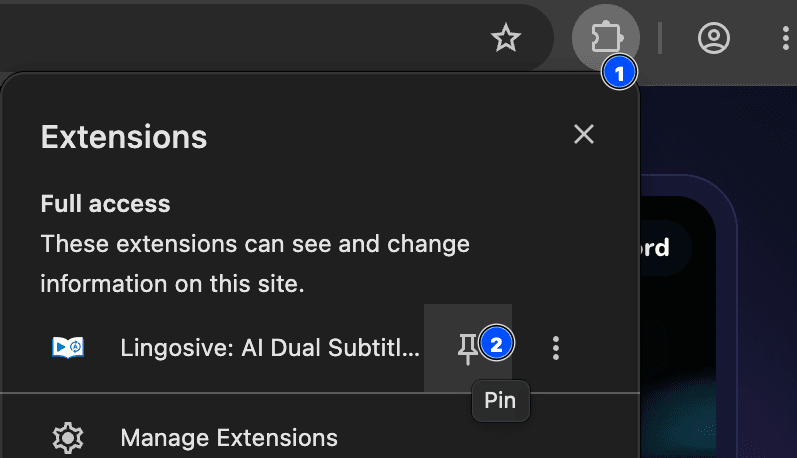
Set the language you want translations in
The translation line uses your native language, which starts out as your browser's language. You can change it in the side panel under Settings → General → "Your Native Language".
Pick a Netflix subtitle track
Start a title on netflix.com, open the Audio & Subtitles menu in Netflix and choose subtitles in the language you're learning. If you change the track later, Lingosive rebuilds from the new one.
Switch on Double Subtitle
Click the layers icon to the right of the subtitle, or press N. If you only see the normal Netflix subtitles, use the switch on the Lingosive button in the player ("Turn on Lingosive subtitles").
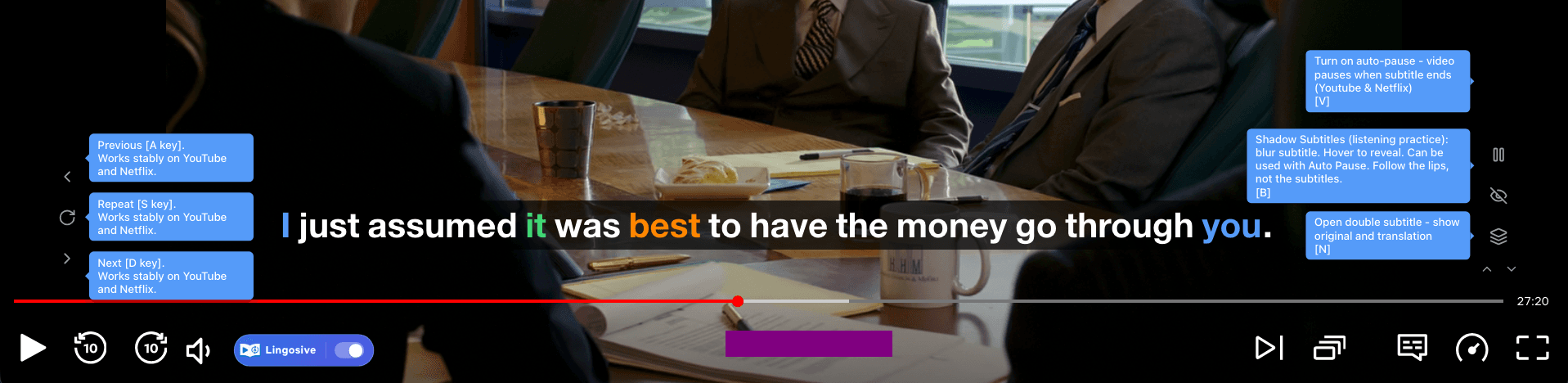
Netflix with two subtitles at once
Netflix lets you pick one subtitle language at a time. To get dual subtitles on Netflix, add Lingosive to Chrome on your computer, select subtitles in the language you're learning and press N: the original line stays on top and a translation in your language appears beneath it. It works on netflix.com in the browser; the Netflix apps for phones and TVs don't take extensions.
What you see on screen
The top line is the Netflix subtitle track you selected. Lingosive hides the subtitle Netflix shows and draws the same text in its place, with every word clickable. The bottom line, a little smaller, is a machine translation that Lingosive prepares a few lines ahead.
Because the second line doesn't come from Netflix, you aren't limited to titles that happen to offer subtitles in your native language. What matters is that the title has subtitles in the language you're learning. Many Netflix titles carry several subtitle tracks, and if you switch tracks mid-episode, Lingosive starts again from the new one.
The Lingosive button next to the volume control does two jobs: click the logo to open the panel, or flip its switch to go back to plain Netflix subtitles ("Return to Netflix subtitles").
Choosing what to watch on Netflix
- Originals over dubs. On a dubbed title, the subtitles and the dubbed audio are often translated separately, so what you read may not match what you hear. Titles made in your target language avoid that.
- Everyday dialogue first. Sitcoms, reality shows and family dramas repeat the phrases people actually use. Fast thrillers full of jargon can wait.
- Something you've seen before. Rewatching a show you've already seen in your own language frees your attention for the words.
- Your country's catalog. The Netflix selection varies between countries, so a show you read about may not be available where you live, or may come with different subtitle languages. The Catalog tab in the side panel is a quick way to browse titles by language; open one and check what your Netflix offers.
For show ideas, our guide to language learning with Netflix and the list of Spanish shows on Netflix by level are good places to start.
A study routine for Netflix
- First pass with both lines. Watch normally and click words that keep coming up. Press V on hard scenes so the video stops after each line, and S to replay it.
- Save and review. Sign in to save words: up to 100 on the free plan; Premium removes the cap. They sync to the web learning center and the Lingosive iOS and Android apps, where spaced-repetition flashcards bring them back to you.
- Take the translation away. Once you follow most of the original, press N to hide the bottom line, or press B to blur the subtitle and listen first.
Hearing a word from an episode again in other scenes helps it stick. Click "Film scenes for this word" in the word card, or search it in Word in Film, which works for English, Spanish, French, German and Japanese. Prefer short clips? The same setup gives you dual subtitles on YouTube. When you're ready, download Lingosive and start your next episode with both lines on.
What works on Netflix
Your Netflix subtitles, made clickable
Lingosive hides the subtitle Netflix draws and redraws the same text. Hover a word for a quick translation, or click it for other meanings, pronunciation and a Learn button that saves it to your list.
Examples from the episode you're watching
The word card lists up to five lines from the current video that use the word, each with a time you can jump to, plus general example sentences.
Auto Pause and slower replays
Press V to pause at the end of each line and S to hear it again. With Blur mode and Auto Pause both on, repeats play slower (0.80× by default). This works on Netflix and YouTube only.
Netflix titles in the Catalog tab
The side panel's Catalog tab lists Netflix movies and series by language, sorted by IMDb rating or by year. Click one to open it on netflix.com.
Works in full screen
Word cards and hover translations open inside the full-screen player, so you can look words up without leaving the episode.
Keep the control bar out of the way
In Settings → Auto-Hide Controls, switch on Netflix and the playback bar under the video stays hidden until you point at it.
Limits on Netflix
- A subtitle track has to be selected in Netflix; with subtitles set to Off, there is nothing for Lingosive to read.
- The second line is machine translation, not one of the Netflix subtitle tracks, so it can differ from the translation Netflix offers in your language.
- Lingosive can only show the subtitle languages a title actually has, and those vary from title to title and between countries.
- Dual subtitles appear only on netflix.com in desktop Chrome, not in the Netflix apps for phones, tablets or TVs.
- Saving words needs a free account, and the free plan holds up to 100 words and phrases.
Frequently asked questions
Can I watch Netflix with two subtitles at once?
Yes, in Chrome on a computer. Netflix shows one subtitle track at a time; Lingosive keeps that track on top and adds a machine translation in your language underneath.
Does Lingosive use a second Netflix subtitle track?
No. The top line is the track you selected in Netflix. The bottom line is machine translation from Lingosive's server, so you get a translation even when the title has no subtitles in your native language.
Which languages can I learn on Netflix with it?
Any language a title has subtitles in. Word-level tools work best in the 37 subtitle languages Lingosive recognizes, and your learning language, which your saved words belong to, can be any of 13.
Do I need an account or Premium?
Dual subtitles and word translations work without an account. A free account lets you save up to 100 words and get a limited number of Lingosive AI explanations each day; Premium removes the 100-word limit and the daily AI limit.
Can I use it in the Netflix app on my phone or TV?
No, those apps can't run Chrome extensions. The Lingosive mobile apps are for practicing the words you saved and have their own video library; they don't show Netflix with dual subtitles.
What do the keyboard shortcuts do on Netflix?
A, S and D go to the previous line, repeat the current one and jump to the next. N turns Double Subtitle on or off, B toggles Blur mode and V toggles Auto Pause. You can change the keys in Settings → Controls.
Dual subtitles on other platforms
Keep exploring
- Word in filmSee any word used in real movie scenes.
- Learn Spanish with TV series and moviesTV series and movies ranked by how hard they really are, with the words to learn first.
- Lingosive vs Language ReactorAn honest side-by-side: where each one works, mobile, AI and free plans, with sources.
- Learn Korean with K-Dramas: What to Watch and How to StudyLearn Korean with K-dramas: read Hangul first, show Korean and English subtitles at once, handle speech levels…
- Can You Have Two Subtitles on Netflix on Your TV or Phone?No, not in Netflix's TV, phone or tablet apps. Here's where two subtitles do work, how to get both on your TV,…
- Language Learning with Netflix: 2026 GuideLanguage learning with Netflix works when you watch actively: target-language subtitles, a translation line un…
Start practicing today!
Get started for free
The extension works in Chrome, Edge and Brave on a computer.
All download optionsLingosive is an independent product and is not affiliated with, endorsed by or sponsored by Netflix. All product names and trademarks belong to their respective owners.