Dual subtitles on YouTube
Watch YouTube with dual subtitles: the captions you pick on top, a translation in your language under each line. Auto-generated captions work too.
Updated
How to turn on dual subtitles on YouTube
Add Lingosive to Chrome
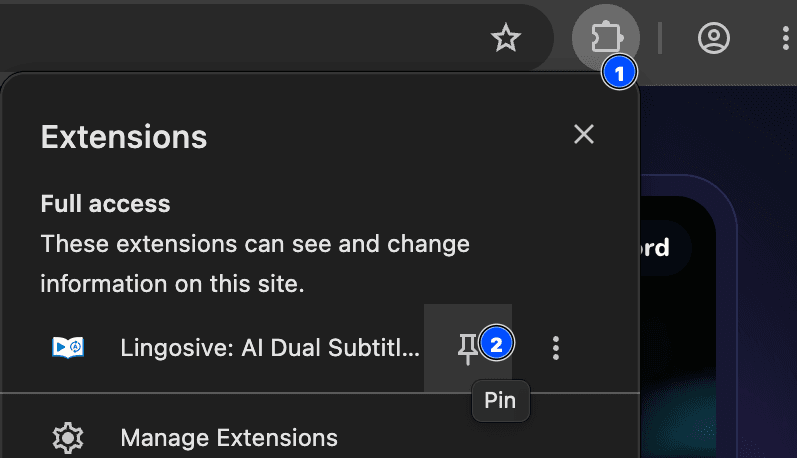
Install Lingosive from the Chrome Web Store in Chrome on your computer. If you want the icon in your toolbar, pin it from Chrome's extensions menu.
Check your native language
The translation line uses your native language, which starts out as your browser's language. To change it, open the side panel (Ctrl+Shift+L, or ⌘+Shift+L on a Mac) and go to Settings → General → "Your Native Language".
Open a YouTube video with captions
Play a video on youtube.com that has captions in the language you're learning. When the video has no captions in your native language, Lingosive switches the YouTube captions on for you. Otherwise, click the CC button in the YouTube player and pick the caption language in its settings menu.
Turn on Double Subtitle
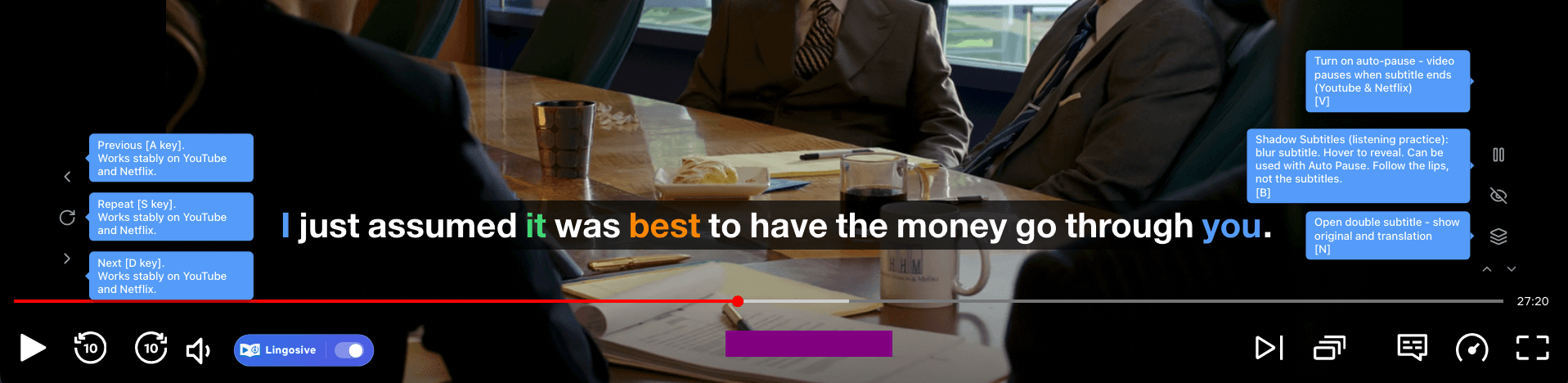
Click the layers icon to the right of the subtitle (its tooltip reads "Open double subtitle") or press N. The translation appears under every line, and the setting stays on across all five supported platforms.
Can you get dual subtitles on YouTube?
Yes. The YouTube player shows one caption track at a time, but with the Lingosive extension in Chrome you get dual subtitles on YouTube: the captions you picked stay on top, and a translation into your native language appears right under each line. Install the extension, open a video with captions and turn on Double Subtitle with one click or the N key.
Where the two lines come from
The top line is the caption track you have on in YouTube. Lingosive hides the caption display built into YouTube and draws the same text as an interactive line, so every word can be hovered or clicked. It works out the caption language from the text itself, which means the language you study is simply the caption track you choose.
The bottom line is machine translation from Lingosive's server, prepared a few lines ahead so it's ready when the line appears. It is not the auto-translate option in YouTube, and it doesn't depend on the video having captions in your language: any caption track can be translated into any of 68 languages.
YouTube captions come in two kinds. Many channels upload human-made captions, which are usually more accurate and better for close study. Many other videos only have auto-generated captions, which arrive as a long stream of words; Lingosive regroups that stream into sentences before translating, so the two lines stay readable.
A setting called "YouTube Subtitle Preference" (Settings → YouTube) controls whether Lingosive turns captions on for you. The recommended default opens the YouTube captions when the video has no caption track in your native language, so videos in the language you're learning often start with subtitles already showing.
How to learn with dual subtitles on YouTube
YouTube makes it easy to study with material you would watch anyway: short interviews, cooking channels, travel vlogs, tech reviews. A simple routine:
- Start with both lines. Read the original, glance at the translation when you get lost, and hover or click any word you don't know.
- Slow the hard parts down. Auto Pause (V) stops the video at the end of each line, and S replays it. With Blur mode and Auto Pause both on, the replay plays slower, at 0.80× by default.
- Save what you want to keep. With a free account you can save up to 100 words and phrases; Premium removes the cap. Sign in and set your vocabulary level, and words in the subtitles get colors: blue for words you're learning, green for words you know and orange for words above your level.
- Take the support away. When you can follow most of the original, press N to hide the translation, or press B for Blur mode and only peek when you're stuck.
Your saved words sync to the Lingosive web learning center and the iOS and Android apps, where flashcards use spaced repetition to bring each word back before you forget it. Looking for something to watch? The side panel's Catalog tab lists YouTube channels and Netflix titles by language, starting with the one you're learning.
The same setup on other platforms
Double Subtitle is one global setting, so once it's on, it also works when you watch dual subtitles on Netflix and the other supported services; see all platforms for the differences. Met a word in a video and want to hear it used elsewhere? Word in Film finds real movie and TV scenes where it's said, for English, Spanish, French, German and Japanese. Ready to try it? Download Lingosive, then pick a video in the language you're learning and press N.
What works on YouTube
Auto-generated captions are supported
Plenty of YouTube videos only have automatic captions. Lingosive reads them and regroups the running text into sentences, so each line reads like a proper subtitle.
Every word is clickable
Hover a word for a quick translation, or click it for a word card with other meanings, a Listen button and up to five example lines from the same video. No account needed.
Auto Pause and line replay
Press V to pause at the end of every line. A goes back a line, S repeats the current one and D skips ahead; you can change these keys in Settings → Controls.
A transcript beside the video
The video side panel has a searchable transcript: click a timestamp to jump there, or save and copy a line. The Words tab lists the unique words in the video.
Lingosive AI explanations
Signed in, click "Get Explanation" in the word card for the word's meaning in that sentence, a grammar note and synonyms. The free plan has a daily limit; Premium removes it.
Blur mode for listening practice
Press B to blur the subtitle so you listen first, then hover to reveal it. You can choose to blur the translation line as well.
Limits on YouTube
- Lingosive doesn't make subtitles from the audio, so a video with no captions at all has nothing to show.
- Only regular videos on www.youtube.com watch pages work: not Shorts, not YouTube players embedded in other websites, not m.youtube.com or music.youtube.com.
- If you switch CC off in the YouTube player, the Lingosive subtitles disappear too.
- The bottom line is machine translation, so slang, jokes and wordplay can come out stiff or wrong.
- It runs in Chrome on a computer. The YouTube app and mobile browsers can't run Chrome extensions.
Frequently asked questions
Can I watch YouTube with two subtitles at the same time?
Yes. With Lingosive in desktop Chrome, the YouTube captions you chose stay on top and a machine translation in your language appears under each line. Switch it on with the Double Subtitle button or the N key.
Does it work with auto-generated captions?
Yes. Lingosive reads the automatic captions on YouTube and splits them into sentences before translating. Automatic captions come from speech recognition, so expect the occasional wrong word in the top line.
Is the second line the auto-translate feature on YouTube?
No. The bottom line is machine translation from Lingosive's server, into any of 68 languages. The top line is the YouTube caption track you have turned on.
Do I need an account?
Not for dual subtitles or word translations. Sign in to save words (up to 100 on the free plan), get Lingosive AI explanations and see words colored by your vocabulary level.
Does it work in Edge or Brave?
Lingosive is built for Chrome. Other Chromium-based browsers that install extensions from the Chrome Web Store, such as Edge or Brave, usually work too.
Can I use dual subtitles on YouTube on my phone?
No. Dual subtitles on YouTube need Chrome on a computer. The Lingosive iOS and Android apps have their own video library and let you practice your saved words, but they don't add a second subtitle line to the YouTube app.
Do theater mode and full screen work?
Yes. In theater and full-screen mode the video panel switches to an overlay, and word cards open inside the full-screen player.
Dual subtitles on other platforms
Keep exploring
- Word in filmSee any word used in real movie scenes.
- Learn Spanish with TV series and moviesTV series and movies ranked by how hard they really are, with the words to learn first.
- Lingosive vs Language ReactorAn honest side-by-side: where each one works, mobile, AI and free plans, with sources.
- How to Learn a Language with YouTube: A 30-Minute RoutineLearn a language with YouTube: pick videos at your level, use captions well, replay the lines you miss and rev…
- How to Learn English with TV Shows in 5 StepsLearn English with TV shows: choose a series by measured difficulty, move from dual subtitles to none, study s…
- Learn Korean with K-Dramas: What to Watch and How to StudyLearn Korean with K-dramas: read Hangul first, show Korean and English subtitles at once, handle speech levels…
Start practicing today!
Get started for free
The extension works in Chrome, Edge and Brave on a computer.
All download optionsLingosive is an independent product and is not affiliated with, endorsed by or sponsored by YouTube. All product names and trademarks belong to their respective owners.